A project schedule is most useful when it gives the team a clear view of both the overall plan and the work happening within it.
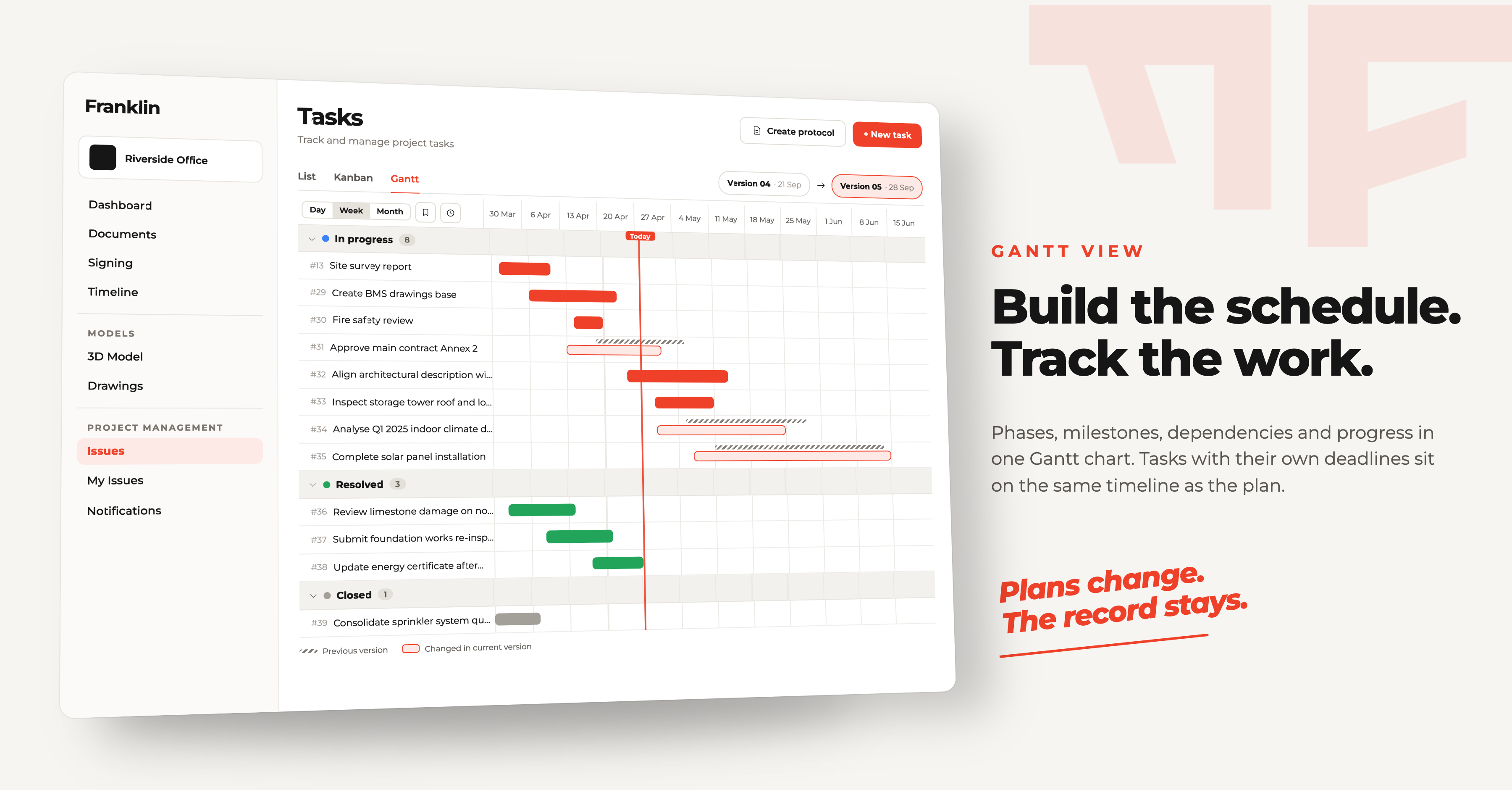
In Franklin, you can build your project schedule in a Gantt chart, organise project phases and milestones, define dependencies and track progress as the project develops. Tasks with their own deadlines or start and end dates can appear on the same timeline, connecting the higher-level project plan with the work that needs to happen along the way.
Here is how to set it up step by step.
Add the main project phases
Start by breaking the project into the main phases you want to track.
Depending on the project, these might include:
- concept design
- design development
- permitting
- technical design
- procurement
- site preparation
- construction
- testing and commissioning
- handover
You can then break larger phases into more detailed activities where needed.
The right level of detail depends on what you want to manage. A development manager may need a higher-level overview, while a more detailed project schedule can contain many individual activities.
In Franklin, each phase becomes part of the project schedule and can be positioned on the Gantt timeline.
Set start and end dates
Next, define when each phase or activity should begin and finish.
For example:
| Activity | Start | End |
|---|---|---|
| Technical design | 1 March | 30 April |
| Procurement | 15 April | 31 May |
| Construction | 1 June | 30 November |
| Commissioning | 1 December | 15 December |
| Handover | 20 December | 20 December |
The Gantt chart turns these dates into a visual timeline, making it easier to see which parts of the project happen simultaneously and how the overall programme is structured over time.
Connect activities with dependencies
This is where a list of dates starts becoming an actual project schedule.
Many activities cannot begin until something else has happened.
For example:
Design approval Procurement Installation Commissioning
If procurement depends on design approval, the relationship between those activities should be visible in the schedule.
Dependencies help the team understand not only when an activity is planned, but what needs to happen before it can begin.
They also make the impact of changes easier to understand. If one activity moves, the team can see which later activities may be affected.
Add and configure a dependency in Franklin
- Open an issue and select the Dependencies field, then choose Add.
- Choose Waits on when the selected issue comes first, or Drives when this issue comes first. Search for and select the other issue.
- Open the relationship row to set its type, lag in days, and whether the link is Rigid or Flexible.
- In the Gantt view, review the staged change and select Confirm to save it.
A positive lag adds days after the constraint; a negative lag lets activities overlap. A Rigid link moves the successor when its predecessor moves. A Flexible link keeps the dates in place and warns when the plan no longer satisfies the relationship.
Assign responsibility
A schedule becomes more useful when it is clear who is responsible for each activity.
Depending on the project, responsibility might sit with the developer, architect, engineer, contractor, consultant or another project participant.
Assigning responsibility answers a very simple question:
Who needs to make this happen?
This becomes particularly useful when the Gantt chart contains activities across several disciplines and organisations.
Update progress as the project develops
A project schedule should not be created once and forgotten.
As the project progresses, activities can be updated to reflect what is actually happening. Some will finish as planned. Others may start later, take longer or change because of new information.
Keeping the schedule updated gives the team a current view of the project rather than a plan that stopped reflecting reality months ago.
But there is an important distinction between updating the plan and overwriting the past.
If every change simply replaces the previous schedule, it becomes difficult to understand how the project evolved.
Keep previous schedule versions
A January programme and a June programme tell two different stories about the same project.
The January version shows what the team expected at the beginning. The June version shows how those expectations changed as the project developed.
Keeping previous versions makes it possible to look back and compare the original plan with later forecasts and actual progress.
This becomes especially valuable when a milestone moves.
Instead of seeing only that the current completion date is six weeks later, the team can understand when that shift first appeared in the schedule.
Compare different schedule versions
See how your project has changed over time for future decisions: whether tasks have been completed on schedule or were delayed.
Save a baseline and compare it with today
- Confirm any staged Gantt changes, select Save snapshot, and give the saved schedule a clear name such as Baseline programme.
- When the schedule has changed, open Snapshot history and select the saved version. Franklin shows it as a read-only schedule.
- Select Compare with today. The Timeline view overlays the snapshot and current dates on the same rows; the Overview lists what moved, what was added and what is no longer present.
- Filter the comparison by change type, show unchanged issues when needed, and switch between day, week and month scales.
See project phases and issues on the same timeline
A project schedule is not made up only of the phases added to the Gantt chart. In Franklin, project tasks are displayed on the same timeline based on their assigned dates.
An issue can have a due date only, or both a start and end date. This means the Gantt view brings together the higher-level project plan and the individual tasks happening within it.
This gives the team a more complete view of the project. A design phase, for example, may run for several months, while the same timeline also shows the tasks that need to be completed during that period and their deadlines.
If an issue date changes or a task remains incomplete after its deadline, it does not stay hidden in a separate issue list. It remains visible in the context of the overall project schedule.
This makes it possible to see both where the project is heading and what needs to happen along the way on the same timeline.
Ask Franklin about your project schedule
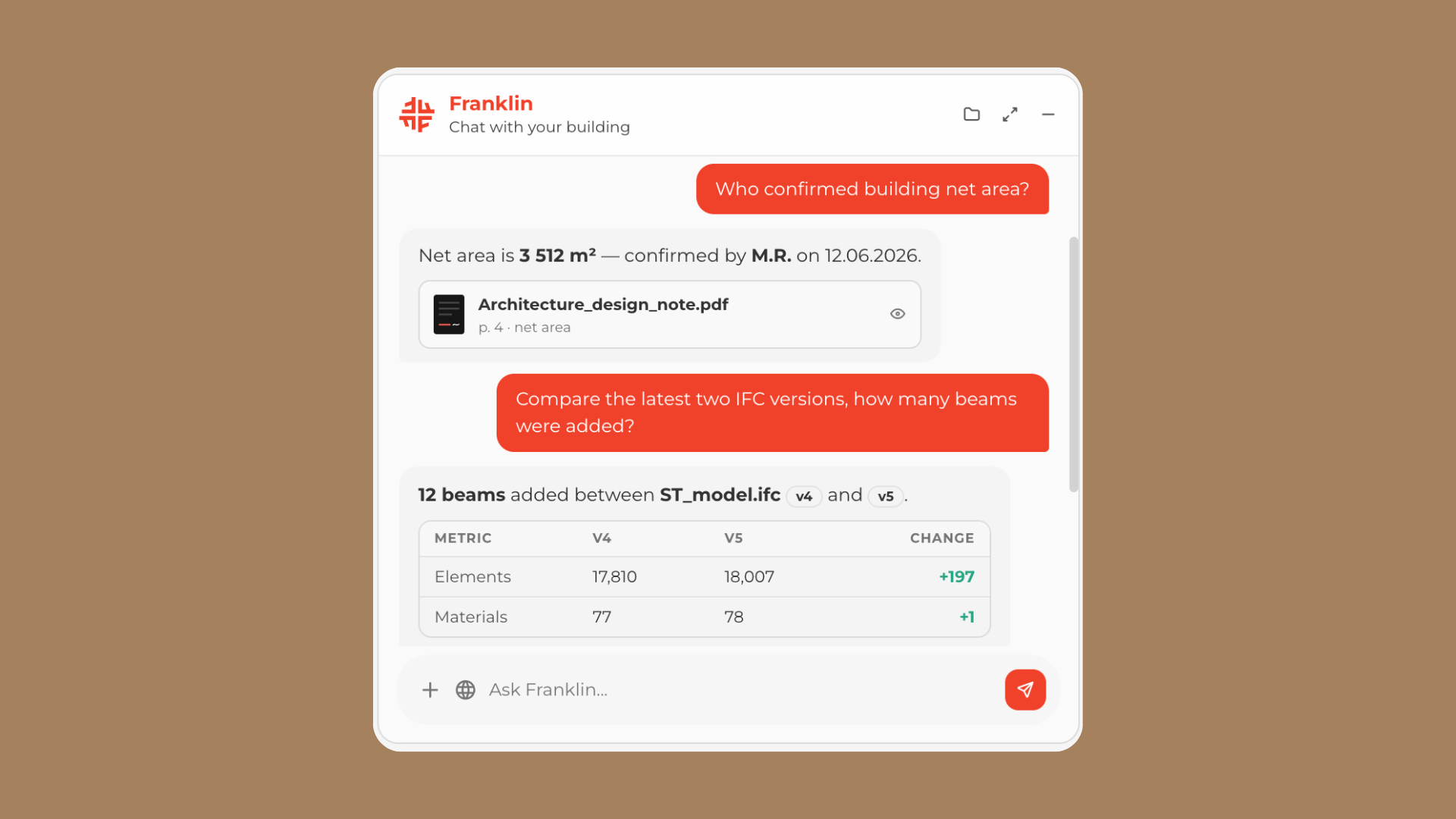
You do not have to review the Gantt chart only visually. When your project schedule and tasks are in Franklin, you can also ask questions about them in the chat.
For example:
Instead of searching separately through the Gantt chart and task list, Franklin can help you quickly find the information you need from the project schedule.
This becomes particularly useful on larger projects where many phases, tasks and deadlines are active at the same time.
What should a useful project schedule show?
At minimum, a useful project schedule should make it easy to understand:
- what phases and activities are planned
- when they should happen
- which dates are important milestones
- how activities depend on each other
- who is responsible
- which tasks are coming up
- what has been completed
- what has changed
The goal is not to create the most complicated schedule possible.
It is to create a programme that helps the team understand the project and what needs attention next.
Build and track your project schedule in Franklin
Franklin brings the project schedule into the same environment as the information surrounding the project.
You can build a Gantt chart, organise phases and milestones, define dependencies, track progress and see project tasks on the same timeline.
More importantly, the schedule does not have to remain an isolated planning file. It can become part of the project's wider history alongside tasks, documents, drawings, issues and changes.
That means the project schedule can help answer both:
What should happen next?
and, later:
What actually happened?
Frequently Asked Questions
A Gantt chart is a visual project schedule that displays activities against time. It typically shows when activities start and finish, how long they last and how different activities relate to one another.
Yes. Franklin allows you to build and manage a project schedule using a Gantt view, including project phases, dates, milestones and dependencies. Tasks with assigned dates can also be shown on the same timeline.
Yes. Tasks can have a due date or both a start and end date and can be displayed alongside the wider project schedule. This makes it possible to see project phases and the tasks happening within them in the same view.
A dependency is a relationship between activities where one activity depends on another. For example, procurement may depend on design approval being completed first.
Previous schedule versions show how the project plan changed over time. Comparing earlier plans with later forecasts and actual progress makes it easier to understand when activities or milestones began to move.
Yes. When schedule and task information is available in Franklin, the chat can be used to find relevant information without manually reviewing the entire Gantt chart or task list.
The schedule should be updated whenever meaningful changes occur and at the project's agreed reporting intervals. Previous versions should remain traceable so the team can understand how the programme has changed over time.